
You copy years of photos to an external drive, unplug it and put it in a drawer. Will the files still open when you need them?
The answer depends on more than whether the drive contains flash chips or spinning platters. Temperature, previous use, the drive's electronics and your next integrity check all matter. A drive that works today is only one part of a preservation plan.
My recommendation: choose a drive you can afford to duplicate and maintain. Use SSDs for convenient, frequent backups; consider HDDs for larger offline copies; and build both into a 3-2-1 backup plan.
A backup drive and a long-term archive do different jobs
A backup helps you recover after a failure, deletion or unwanted change. An archive keeps material you intend to preserve, sometimes after you remove it from your working computer.
That last step is easy to get wrong. Move your photos to an external drive and delete the originals, and you have one copy again. Calling the drive an archive does not give those files any redundancy. Seagate's backup explainer makes this distinction particularly clear.
Also separate regularly connected storage from offline storage left untouched for years. An SSD used for weekly backups is a different proposition from an SSD sealed in a cupboard until 2036.
Why an unplugged SSD can lose data
NAND flash stores information as electrical charge. The controller reads the resulting cell states to reconstruct your files. Insulating layers help retain that charge without power, but repeated programming and erasing wear those layers. Retention becomes harder as wear increases, and higher storage temperatures accelerate charge loss. Western Digital explains this relationship in its SSD endurance white paper.
This is a reason to plan maintenance, not evidence that every SSD loses its files after a fixed number of months.
TLC stores three bits per cell; QLC stores four. That means distinguishing eight and sixteen states respectively, as illustrated in Micron's memory introduction. More states make reliable sensing more demanding. However, NAND generation, error correction and controller design also matter. The letters “QLC” alone cannot tell you how many years a finished drive will retain your photos.
What the one-year retention figure actually means
The JEDEC class requirements reproduced by Kingston include these conditions:
| SSD class | Powered-use conditions in the test framework | Required power-off retention |
|---|---|---|
| Client | 40°C, eight hours per day | One year at 30°C |
| Enterprise | 55°C, 24 hours per day | Three months at 40°C |
These are qualification requirements under specified workloads and conditions, including at the drive's rated endurance limit. They are not expiration dates for every new SSD. The two rows also use different temperatures and workloads; they do not prove that a consumer drive lasts four times longer in the same drawer.
A lightly used drive may retain data for much longer. An old, heavily written drive or one stored in heat deserves more caution. Kingston's separate SSD myths article rejects alarmist claims that normal SSDs inevitably lose their files after a few weeks or months.
TBW is a write budget, not a shelf-life rating
Terabytes written, or TBW, describes a drive's rated host-write endurance. A high TBW number does not promise a decade of unpowered storage, and reaching the number does not create an instant failure deadline. Check the individual warranty and specifications.
For example, writing a 1 TB collection twice a year produces approximately 10 TB of host writes over five years, before additional updates. That arithmetic helps estimate workload; it says nothing about the drive's calendar life. Dell's endurance documentation also warns that going beyond rated write endurance can reduce power-off retention below specification.
Does plugging an SSD in refresh the data?
Power gives the controller an opportunity to maintain data. It does not prove that every file has been refreshed.
Some SSDs monitor blocks and rewrite data that needs attention while powered. This is primarily a drive-firmware function, not a universal operating-system service. A directory listing or opening one photograph does not read the whole collection.
Follow guidance for the exact model. As an illustration of how specific that advice can be, Dell's PowerEdge retention notice describes a substantially longer powered maintenance period for affected enterprise products than a brief plug-in. Its schedule should not be applied to every portable consumer SSD.
For your archive, distinguish three actions:
- Power on: allows firmware maintenance where supported.
- Read and verify: checks that the files can still be read and match a trusted earlier checksum.
- Copy and verify onto another drive: creates a fresh, independently checked copy while preserving the existing one.
Reading a file is not inherently the same as rewriting it. Never erase or reformat your only copy as a “refresh.”
Is an HDD safer for a drawer archive?
An HDD records data magnetically and avoids NAND's charge-retention mechanism. It can be a sensible option for a large offline copy, particularly when your budget stretches to a second drive rather than one expensive device. Compare current capacities and prices for your needs.
However, the motor, heads, electronics, cable or enclosure can fail. Dry storage and careful handling reduce risks; they cannot guarantee that a disk will start after ten years. The Canadian Conservation Institute's hard-disk guidance stresses periodic copying and the risk that playback equipment becomes obsolete.
Do not turn reliability statistics from powered data-centre drives into a shelf-life promise. Backblaze's SSD reliability discussion describes its measured SSD workload as server boot drives and treats evidence about drives left in a cupboard much more cautiously.
An SSD's lack of moving parts is useful when you carry backups around. An HDD's storage economics can be useful for a large collection. Either choice still needs another copy.
The external HDDs in my drawer
I have several external hard drives sitting in a drawer. Writing this article reminded me of them, and I finally have a use for them again: additional offline backup copies. Before putting them back to work, I plan to check what is already on them, make sure anything worth keeping exists elsewhere, and verify any new backups I create. I would rather give those drives a useful role in a backup routine than leave them forgotten in the drawer. Their age and condition will determine which ones I can still use.
What about M-DISC, tape and cloud storage?
Archival optical discs can add a different storage technology for a selected collection. Verbatim advertises a projected lifetime of several hundred years for the M-DISC BDXL product documented here, based on ISO/IEC 16963 testing. This is a test-based projection, not centuries of observed survival or a guarantee for your particular disc.
You still need a compatible writer and reader, a verified burn, protective storage and another copy. Different optical formats use different materials; do not assume every disc has identical archival properties. The Canadian Conservation Institute's optical-disc guidance explains why manufacturing quality, recording and storage affect results.
LTO tape is another preservation option where the collection justifies compatible drives, software and a migration process. Check the exact drive and cartridge generation: IBM's compatibility tables show that compatibility is limited. That equipment and workflow can make it less convenient for a small home collection.
Cloud storage can provide geographical separation, but check retention, deleted-file handling, account recovery and how you export everything. A synced folder can propagate unwanted changes. Choose the service and settings for the recovery you need, and keep an independent copy. The Digital Preservation Coalition's storage principles emphasise diversity, monitoring and migration rather than dependence on one technology or supplier.
A maintenance routine for family photos and documents
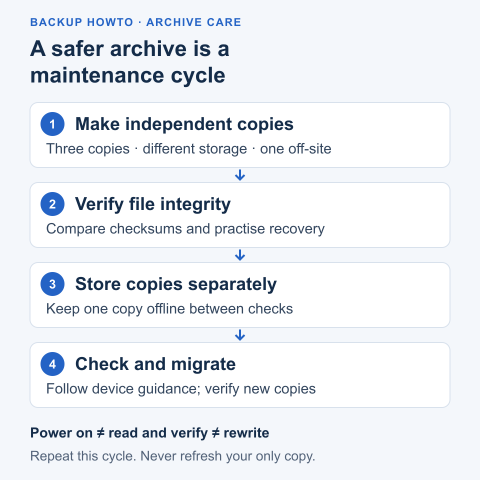
An archive needs repeated checks, even while one copy stays offline between visits.
Here is a practical starting routine. It is an editorial recommendation, not a universal retention guarantee for a drive.
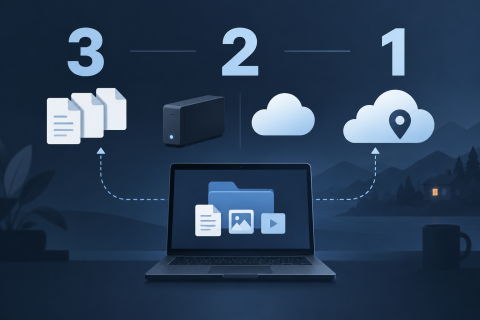
- Make three complete copies. For example: your working collection, an external backup and a separate off-site copy. If you remove the working collection, make sure three copies still exist.
- Establish a verified baseline. Create SHA-256 checksums when you know the files are good, then compare the copies against that baseline. Preserve the checksum list in more than one place.
- Keep a copy disconnected between checks. Store devices in a stable, cool, dry location within their specifications, protected from knocks. A parked car or hot attic is a poor storage place.
- Schedule a six-monthly review as a starting point. Follow a shorter interval if your device documentation or circumstances require it. Connect offline copies, run a full file-integrity check and record the results. The DPC's getting-started guide uses six-monthly revisits as an example and recommends trial recovery from third-party backups.
- Practise restoration. Restore a folder to another location and open representative photos, documents and videos. Confirm that you can decrypt the files and use the required software.
- Plan replacement and migration. Review equipment, capacity and reader availability at each check. Move data before hardware or software becomes a barrier, verify the new copy, and retain the old one until verification is complete.
Checksums detect changes; they do not repair them. When a mismatch appears, investigate and restore from a verified good copy instead of blindly synchronising the damaged file everywhere. The DPC's fixity guide explains this approach.
Keep a short recovery note with the collection: what it contains, where the copies are, the last successful check and what is needed to read them. Store encryption recovery keys securely through a separate recovery route. Make sure a trusted person can understand the plan if you cannot maintain it.
Which should you choose?
| Your main need | Practical direction |
|---|---|
| Frequent backups and a drive you carry | An SSD is a useful option; keep independent copies and verify them. |
| A large collection that is usually offline | Consider HDDs for duplicated, periodically checked storage. |
| A small, selected collection on another technology | Consider archival optical discs if you can maintain compatible equipment. |
| A collection you cannot afford to lose | Start with copy count, separation and recovery testing, whatever the medium. |
Buy the medium as part of that plan. For the copy-count and off-site checklist, continue with The 3-2-1 backup rule explained.
Hero illustration generated with AI; the devices do not represent tested products. Archive maintenance diagram: original Backup HowTo illustration.