
Backing Up Files with AceBackup
AceBackup is a lightweight (compared with Norton Ghost, etc) backup software. It is fit for personal use. AceBackup can run on most of Windows operating systems, from Windows 98 to Windows XP/2003. The features include:
- Simultaneous backup on remote FTP servers or any local storage devices, even CD or DVD
- Multiple versioning backup of the files with same name
- Filter to eliminate certain file name extensions or to store files with the requested file extension!
- ...and much more
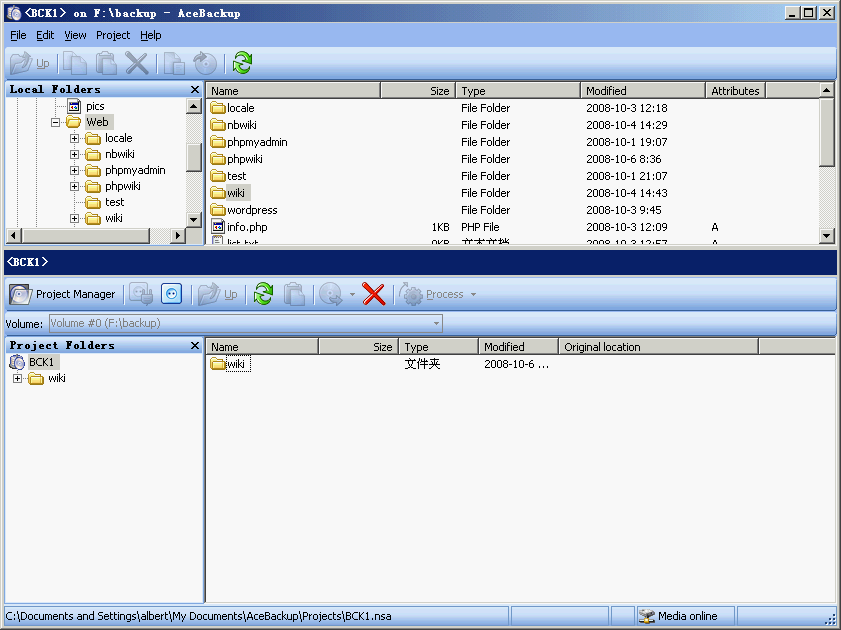
AceBackup main window
How to Backup with AceBackup
Let's backup some files with it step by step and have a look. Before backup, you need to create a new backup project. Open "File"->"New" menu, the new project wizard will show. With the wizard's help you can see many options and most of them are very understandable. Notice the following step:
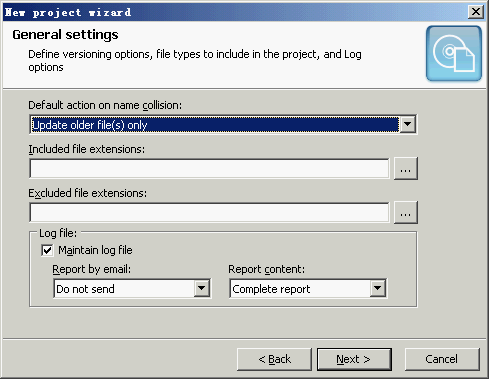
New Project Wizard
The first drop list sets the action when the destination file exists. For example, if you have backup a.txt to 'F:\backup'. Then you make some changes on a.txt and backup again. This will cause 'name collision' because there has been the file in F:\backup.
AceBackup provides three actions when name collision happens. The default "Update older files (only)" means replacing the old files with the new files. "Replace existing files" means replacing all the files with source files and "Create a new version" means saving the old files but creating a new version backup so that you can restore any old versions of files later.
Next, choose one or more destinations. With AceBackup you can backup your files to several destinations at the same time. For example, you may want to backup your important documents to CD and your remote server. In this example, I add one destination, F:\backup.
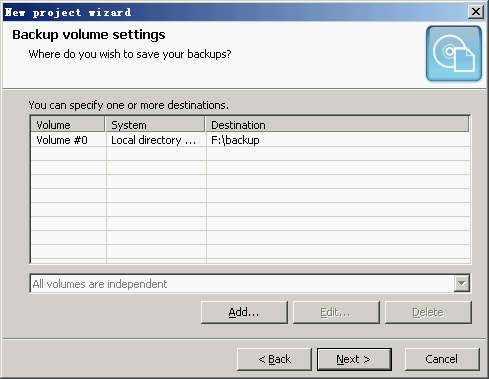
Destination settings
After you create the project, you can add files or directories by dragging them from the top frame to the bottom. Then click the "Process" button on the project toolbar to create the first backup. You can click the update icon at any time. If any files in the source directory have been changed, the "Process" button becomes available so that you can keep the source and the destinations same.

Update icon
How to Restore
To restore files, just click the "restore" button on the backup project toolbar (bottom) and then click "Process". In addition, you can restore files to another directory instead of the original source directory by clicking the tiny triangle and select "Restore to alternate location". The last step is clicking "Process" button to start restoring.

Restore button
Tips: How to restore a file with a specified version?
If you set the name collision action to "create a new version", AceBackup will save all the version of a file so that you can restore any "old" version of a file at any time. Or you can change the action by right clicking the project name and selecting "Properties":
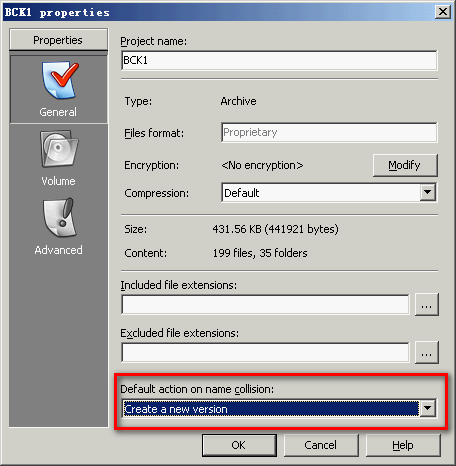
Create a new version option
To select a version that you want to restore, right click on the file and open "Properties", then "Versions". Look at the picture below:
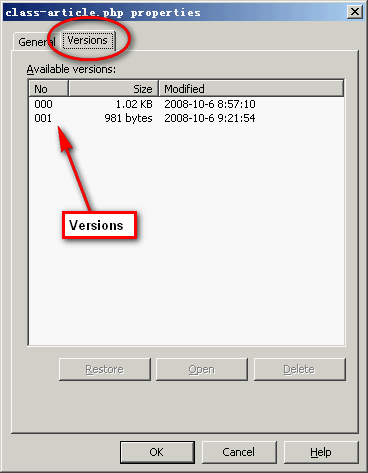
Available versions
Here you can see all the versions of the file. So you can restore, open or delete any version of the file. This feature is very important for writing some formal documents.
Try AceBackup
AceBackup is freeware. If you want to have a try, go to its official site and download it!