
Genie Backup Manager
In modern day computing technology, backup has become a mandatory element for all Operating Systems as well as Disaster Recovery Plan for maintaining the integrity and security of a network. Different softwares are available to keep back-up of information for Windows Operating System. One such data backup software is called Genie Backup Manager that contains different backup strategies to help sustain the stability of the Operating System.
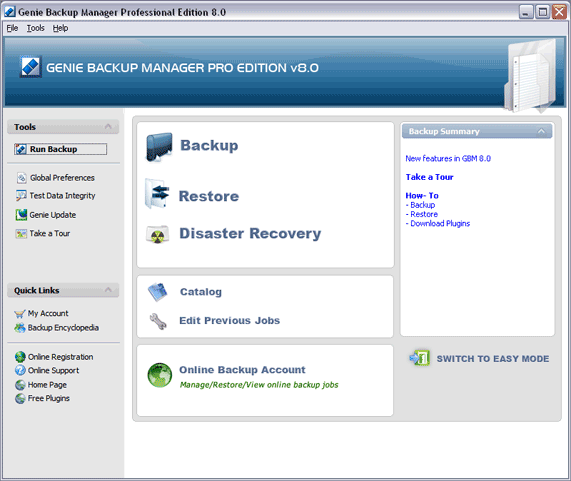
Genie Backup Manager or GBM is a multi-functional backup software that provides powerful features that can archive and restore personal files, documents, e-mails, complex registry settings of Windows. It has also the capabilities of restoring different folders and files to remote or any local device across FTP locations or network, removable media, CD/DVD discs and so on. The most significant feature of Genie Backup Manager is that it is compatible with almost any backup media format including external and internal hard drives, USB memory, Floppy drives, CDs and DVDs and so on.
GBM uses bit-level verification technology to verify each byte of data that needs to be backed up, ensuring cent percent restorability with accuracy. It also offers rapid compression of data with high degree of unmatched efficiency and performance. In addition, GBM allows the needed protection for password backups using 128-bit AES protection. The professional version of this software facilitates up to 256-bit encryption.
How to use Genie Backup Manager
As GBM is very much user friendly, and an individual can run the backup of his data and other information by following some simple steps outlined below:
- Once GBM Home 8 is installed in Windows XP, the user needs to access GBM and click on the "Backup" option.
- From the left navigation menu in the backup wizard the user needs to select the option of “What to Backup” and then select “My Folders” tab
- The user then has to click in the checkbox next to each individual file or folder that he or she needs the backup
- Following these, the user has to select the proper Backup Settings. Either an individual can select compression, security type, and backup type depending on the need and then click “Next” to backup.
- Backup type can be "Full", "Increment" or Mirror. Once the user selects "Increment", he or she needs to select the checkbox "Enable Rollback". The backup type is fully dependent on the user what he chooses.
- If the user wants to compress his data or other valuable information, he can select the option "Use compression (Zip format)" and the compression level should always be selected as "Default" from the drop down menu.
- The security type in the settings option is upon the discretion of the user whether he needs to backup his information.
The above mentioned steps are easy to implement and the interface is self explanatory that can make any user whether he is a novice or an expert to actually back up their data and information safely and securely.