
How to backup Adobe Photoshop Elements 6 Catalogue?

Tagged:  

There are times when the outcomes of Photoshop operation are strange. These outcomes cannot be figured out by you. So it’s the time to trash your preferences or some time you have to replace the whole software. There are some files you have created using some specific preferences and you don’t want to loose them. So don’t worry Adobe Photoshop Elements 6 contains a facility using which you can backup the preferences or the whole catalogue of preferences. 

System Requirements for installing the Adobe Photoshop Elements 6

  • Windows XP or later
  • Processor compatible with Pentium, Speed greater than 600MHz (Recommended Speed: 1200MHz).
  • RAM 128MB (Recommended 256 MB)
  • Hard Drive Space of 400 MB required.
  • Monitor with resolution greater than 800 X 600 (Recommended 1024 X 768)
  • Color Display: 15 Bit (Recommended 24 Bit)

Backing up the Catalogue

Step 1

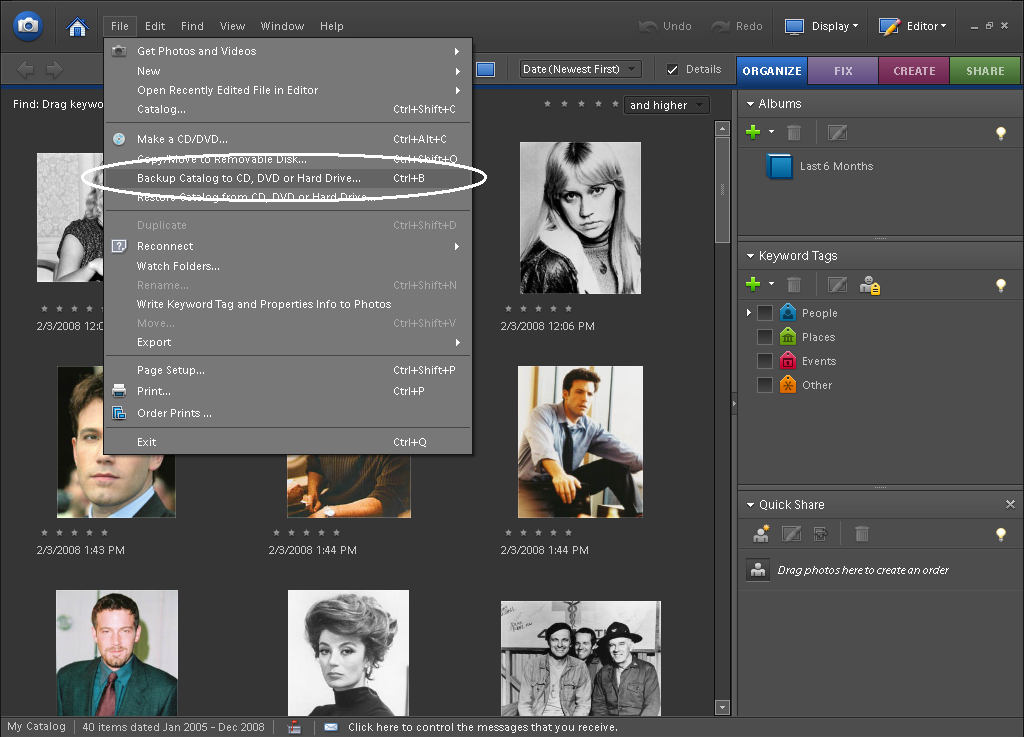
When you open the Adobe Photoshop Elements 6 organize window, go to the File menu in the menu bar and select there Backup Catalog to CD, DVD or Hard Drive process shown in Fig.1;
Adobe Photoshop Elements 6

Figure.1 Backup Option Selection in Opening Window

Step 2

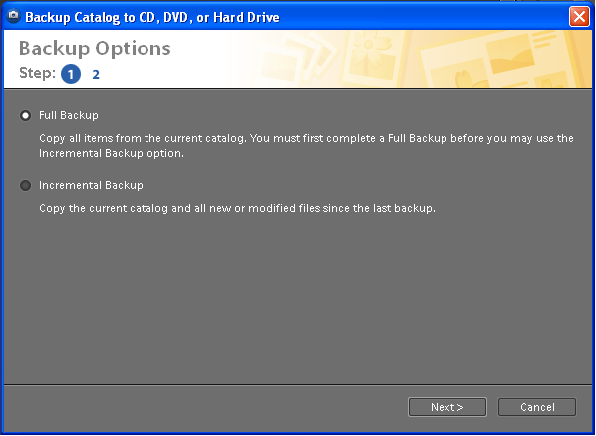
In the preceding wizard select the Full Backup option to copy all items from the current catalog and click Next.
Adobe Photoshop Elements 6

Figure.2 Backup Catalog to CD, DVD or Hard Drive Wizard

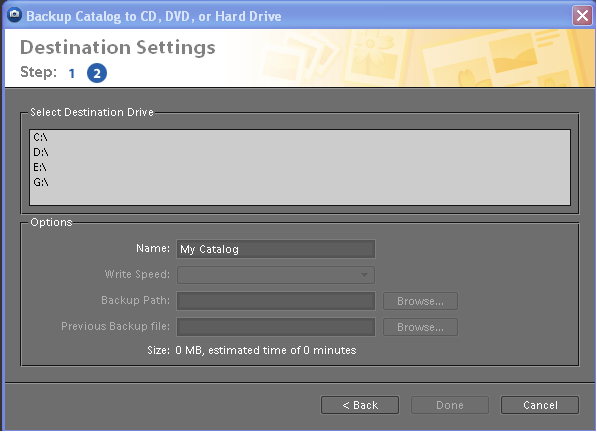
In the next appearing window, you have to select the destination to backup your catalog, wizard is shown in Fig.3 and suggest your backup file name.
Adobe Photoshop Elements 6

Figure.3 Destination Selection Window

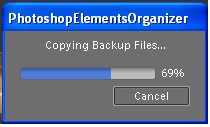
After selecting the destination drive, the Done command button will get active. The status bar of process progress dialogue pops up as shown in Fig.4;
 Adobe Photoshop Elements 6

Figure.4 Backup Process in Progress

In the next window, click Ok command button will create a backup file in the target destination selected by you.

How to Restore your Catalog?

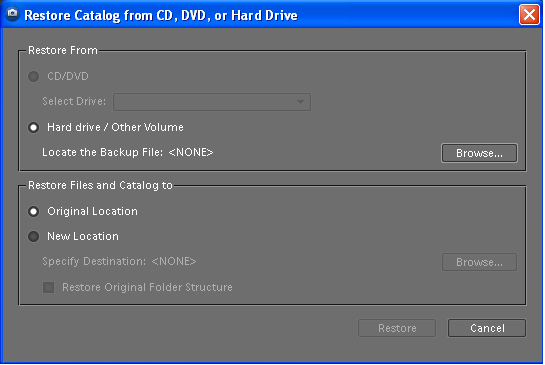
For restoring the catalog again in Fig.1 window, select Restore Catalog From CD, DVD or Hard Drivethe relevant wizard is opened as shown in Fig.5;
Adobe Photoshop Elements 6

Figure.5 Restore Catalog from CD, DVD or Hard Drive

Browse to the destination folder where the backup file is stored then the Restore command button will get active clicking that the progress bar will be shown and the files will be restored to there original location. The wizard is shown in Fig.5.

Using Adobe Photoshop Elements 6 makes the restoring process faster and easier.

This is a great resource for backing up your catalogue. Very easy to understand and do yourself.

great step by step guide, thanks

The only extra info i would love to have seen is when you do restore from the DVD into photoshop elements 6 is do all the folders that the images are in on the hard drive get restored as well.

Thanks for the article

This is good to know, especially since I was needing this for a friend of mine, appreciate it! Thanks mate :]

Thank you for the detailed steps of backup process.

I Have Elements 3. which does not backup the collections pane I need to backup the indexed files and photos I have. Will the Elements 6 do this for me, before I loose many hours of work Thanks

Hi Chippy,                                                                                                              I just checked your query, it's really a easy task to backup all your indexed files and photos. I recommend you to use Adobe Photoshop Element 6.0 to backup all your catalogue settings and photos which you had collected since long time.This article really helps you to backup your index files settings and photos. For further query, please feel free to email us from contact us form on my homepage or you need to become the registered user of this informative backuphowto.info for more conversation.Thank you,BackupHowTo Team

Naresh,Brain Bridge Outsourcing Services Pvt. Ltd.Pune, Maharashttra,India.

Hi,

I should be in deep shit now, so please tell me there are a solution to this.

I store my digital images on a workstation, now since 2004.
Recently, I used an separate laptop during a holiday trip with Element 6.0 installed and took many pictures and used the lap top as backup and storage as my two memory 2GB cards was not enough. During the holiday I tagged, image adjusted and added description for all 1200 images.
Now back at home I did want to transfer this from the lap top to my workstation.

I did a Backup Catalog from the laptop into a portable HDD and did a Restore Catalog into my workstation photoshop elements, believing that the new holiday photos should merge with all other photos and tags.
But guess what! All previous tags are now gone on Photoshop Elements an only the "lap top" tags are now shown!

Question: Are there any way to restore my old tags, photos, descriptions, without a complete backup from the "workstation" computer? The images are still located on the HDD, but are not linked in photoshop.

Please please tell me that where is a solution for this!
There are the tag information stored for this Adobe application?

Jan Polzer's picture

Hi, this is a very strange behavior. I use for my photos Windows Live Photo Gallery which is saving the tags directly to the images files so I thought that the Adobe do it the same way.

Maybe, the solution for you should be export and import the tags. Take a look here http://help.adobe.com/en_US/PhotoshopElements/6.0/help.html?content=WSDD...

Jan Polzer, Backup HowTo owner

And no,, my tags was not saved in images header.
But there are a feature to do this manually i PSE 6.0.

Thanks for you quick reply:
I guess that the Import and Export has to be made before you mess things up!? Which is to late in my case!
If I do the export tags now I only exports the new tags and not the old that I'm missing.

On good thing is that in C:\Documents and Settings\All Users\Application Data\Adobe\Photoshop Elements\Catalogs\
the file catalog.psedb file is still larger than the one on my laptop and reading it as text it contains attributes that look to be the key tags I'm missing and are hopefully that it can be restored. But how I don't know.

I now have tried:
1. Import tags - I have not taken a backup on any XML-file to import.
2. File->Catalog->Repair - Does not find any errors.
3. File->Reconnect images -Does not find any images to reconnect.
4. Export tags - But the only tags there are exported are new ones that I don't want!

Please please please, some one help me, other wise many years of serious tagging is lost. :(