
How to backup and restore data and e-mail account settings in Outlook 2007

Tagged:  

Creating backup of your outlook data and email account settings is as essential as creating backup of any data. This will help you in case of data loss or migrating from one system to other. In Outlook 2007 your e-mails are saved in a Personal Folder File with a .pst extension which does not include in your normal backup operation. Following these simple steps can help you to save and restore your e-mail, contacts, rules, task and more.

Backup your Email data – Microsoft Outlook 2007

1. The data is saved in a Personal Folder File (.pst) only if you are not using Microsoft Exchange account or Windows Live Mail account. For Microsoft Exchange Account or Windows Live Mail account your backup data is saved locally on your computer instead of the e-mail server.           

There are two .pst files, one is the personal folder file which includes all of your Outlook folders, such as the Inbox, Calendar, tasks and Contacts and the other is the Archive Folder which includes archive messages of your Outlook.

2. You can easily locate the data files in outlook 2007 using the following steps.

Go to Main Menu of Outlook 2007, Click File and select Data File Management and Account setting window will pop up. The other way is to click on Tools menu and select Account settings from the drop down menu.

3. Click on the Data Files tab. You may have a single data file or multiple data files. These are the Data Files, wherein you store your email messages, tasks, calendar, tasks and other items.  
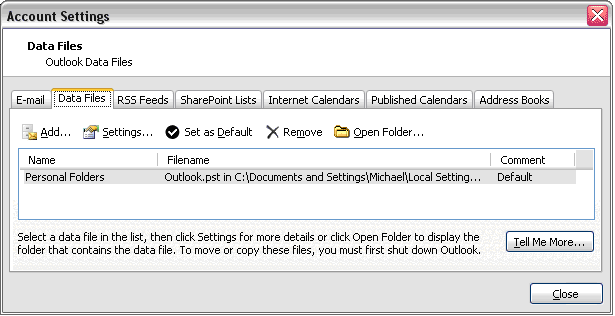
Outlook 2007

4. Click on the Open Folder icon. Windows Explorer will be opened automatically and will take you to the location where this data file is stored. Now select the outlook.pst and archive.pst file you want to backup.

5. Now you can copy this file to any backup storage device. Make sure that your Outlook is closed before you backup these files. 

Restore your Email data – Outlook 2007

Restoring is as simple as to backup your data.  All you have to do is copy the backup PST files into the folder that you located when you backed up your work initially.

Backup/Export Account Settings - Outlook 2007

  1. Start > Run > type ‘regedit’
  2. Locate the following path in your ‘Registry Editor’
  3. HKEY_CURRENT_USER\Software\Microsoft\Windows NT\CurrentVersion\Windows Messaging Subsystem\Profiles\Outlook
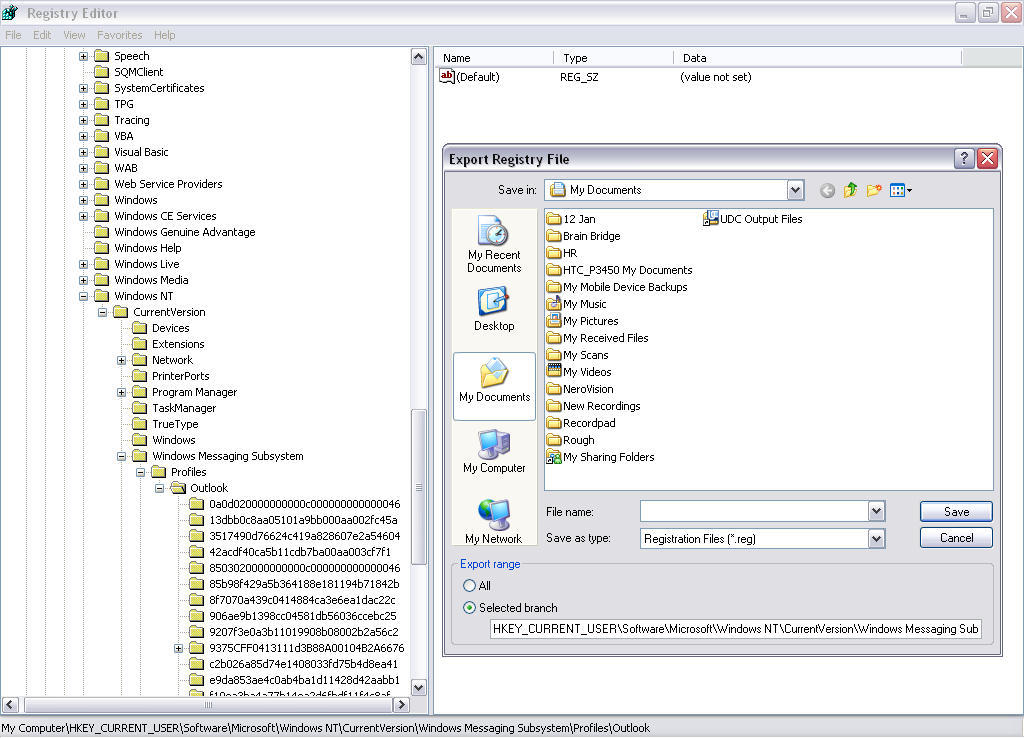
Registry Editor

Now right click on the key outlook and select option: Export and save .pst files to your desired location. You can run the same file while restoring your outlook. This will restore your old outlook profile with all your email accounts settings and rules. You will need to enter your password as Password is not stored into .pst file.

It is difficult to locate the Personal folder files in the previous versions of Outlook; however it’s much simpler in Outlook 2007. Backing up and restoring data is easier, faster with the new outlook 2007.

I have been going crazy trying to figure out how to backup my email accounts (I have 12 of them) so that I would not have to manually set each account on my other PC.
I just tried what you suggested and it worked like a charm. All I need to do now is set the passwords for each account.

The .pst file was easy all I had to do was go to File> Import and Export> Highlight Export to a file> Next>Highlight Personal Folder File (.pst)> Next> Highlight Personal Folders> Checkmark Include subfolders> Next> Browse to assign where to backup> Finish> Password Protect if you wish> OK.
That's how I backup my Outlook.pst file.

Again thank you very much! Great work!

How do you restore the registry key to get your accounts back in? Import?

Thanks

Double click the REG file and confirm.

Jan Polzer, Backup HowTo admin

Your article is very interesting to me so I like that so much and Thanks you

Hi,

Nice article! However, I cannot seem to get this to work - and I have two separate mail accounts, my own and my wife's in the same programme (profiles?). I had a hard drive failure and have had to rebuild the PC. Luckily, I have the full OUTLOOK folder with all its PST files in a backup location on a second drive.

I copied all this to the same location on the nwly built C: drive after re-installing Office 2007 Standard Edition (which includes Outlook 2007) only to find that Outlook still wants me to supply full email/settings details when I open it! As I said, i ad two users - me and my wife. The Outlook user folder has four PST files - Outlook.pst0, 1, 2 & 3; 1 archive file and 3 .obi files - Carolyn.obi, lee.obi and ~last~.sharing.xml.obi I have placed all these back into the new Outlook 2007 installation but I cannot access the programme without having to re-create the accounts (I have set two new profiles using the MAIL option in CONTROL PANEL

Can anyone walk me through how to just restore Outlook 2007 as it was with my two accounts and email? It should not be this difficult to do it! I have finsihed setting up the whole PC (2 days work) but Outlook seems to want to really test me! thanks for any help you can be.

Cheers,

Lee

Hi Lee,
do you have export of the registry mentioned in the article above? If not, you have to setup e-mail account manually.

However it is possible to get all your e-mails from backup files. Just create the account in Outlook at first. Then close the Outlook and overwrite its files with your backup.

You could also connect your backup PST files as the secondary storage via Account Setings|Data Files. This will make possible to view all your older e-mails.

Hope this helps.

Jan

Jan Polzer, Backup HowTo admin

After doing that registry thing you need to go to control panel:

- Click on Mail
- Click on 'Show Profiles'
- Select 'Prompt for a Profile to be used'

I am sure it will work for you as it worked for me.

Thanks.
Tariq

Hello Jan,

I have a full backup of the C: drive as it was before the failure. It is stored as an image file by Acronis True Image backup software - and I can mount the drive backup using TI to use the contents.

The reason the rebuild took place was because TI would not restore the C: Drive Image back to the newly install operating drive! the backups were not corrupt or damaged in any way - I can mount them ! - but the restore would not work. so I had to rebuild from scratch! That is now done and all working - except Outlook! I'd rather not re-do my email account settings for both of us if I don't have to. I do have Registry backups in the old C: drive backup archive (I use CCCleaner so I make backups of the Registry every time I use it) so could I export the settings out of one of them? and then import them into the current Registry?

Thanks for your help,

cheers,

Lee

Yes, if you will be able to get the needed part out from the backed up registry file, then it should help.

Jan Polzer, Backup HowTo admin

Hi

I Have a computer with vista that dosent boot anymore, so I would like to know if there is any way to get my email setting from that computer by connecting that hard disk as second hard disk on a working PC,

thanks
Giuseppe
or please let me know which file conbtain the reigstry information with my email address

You can use a program call winternals erd commander. You need to download it and then burn the image to a cd as a bootable image. Boot to the cd and then you will then be able to boot to the non bootable hard drive and recover your data as if tou were actually in windows. You can read about and download ERD commander here
http://www.keshzone.com/2007/10/winternals-erd-commander-2005-ready-for....
Trust me it works great. Best tool to have.

Hi Friend,

Thanks for the Information.. We will try this in our coming article and thank you so much for your suggestion.

Naresh

Hi, folder with e-mails is located at (for Windows Vista and Outlook 2007):

C:\Users\YOUR_USERNAME\AppData\Local\Microsoft\Outlook

I recommend to copy these files to the new computer and using connect them to the Outlook. So you can see all your e-mail. However for e-mail settings (like POP3 servers or account names) this doesn't help. But I think it shouldn't be a big problem to set up again manually.

Hope this helps.

n/a

Thank you so much for your steps!!! It works very well.. hopefully there is also a method to include password as well....

Well, the backing up with the registry is a fabulous idea, however, my pst file is on another drive and doesn't show up in the registry. Any suggestions? I have about 30 email accounts in my Outlook, and after a double-crash this past week, I NEED to back up the email accounts! It took 2 hours just to add them all back and then create all the rules and whatnot for them.

Thanks in advance

Hi, I think that PST files are one important thing and the registry entries are the second. Every acount settings is in the registry.

Jan Polzer, Backup HowTo admin

What a very nice, concise set of steps for doing a "brain transplant" of Outlook from one system to another, Naresh!

I've had to figure this out the hard way in the past but you've included some shortcuts that took what was usually a 45 minute process into about 10. Thanks again!

Mark